The Tool Desk
Outbyte PC Repair FREERepair Windows errors before they cause bigger problemsFix Now →Outbyte Driver Updater FREEScan for outdated or missing drivers - takes under a minuteDriver Scan →Samsung Mobile is reader-supported. When you buy through links on our site, we may earn an affiliate commission. As an Amazon Associate I earn from qualifying purchases. Learn more
Unlocking Pro Mode on your Samsung camera app opens up a whole new world of creative control. It’s like turning your phone from a simple point-and-shoot into a powerful photography tool. Sure, automatic modes are great for quick, everyday snaps, but Pro Mode gives you the power to manually adjust key settings and capture truly stunning, unique images.
This guide will walk you through each Pro Mode setting on your Samsung device, explain what they do, and show you how to use them effectively. Let’s dive in!
General shopping ads
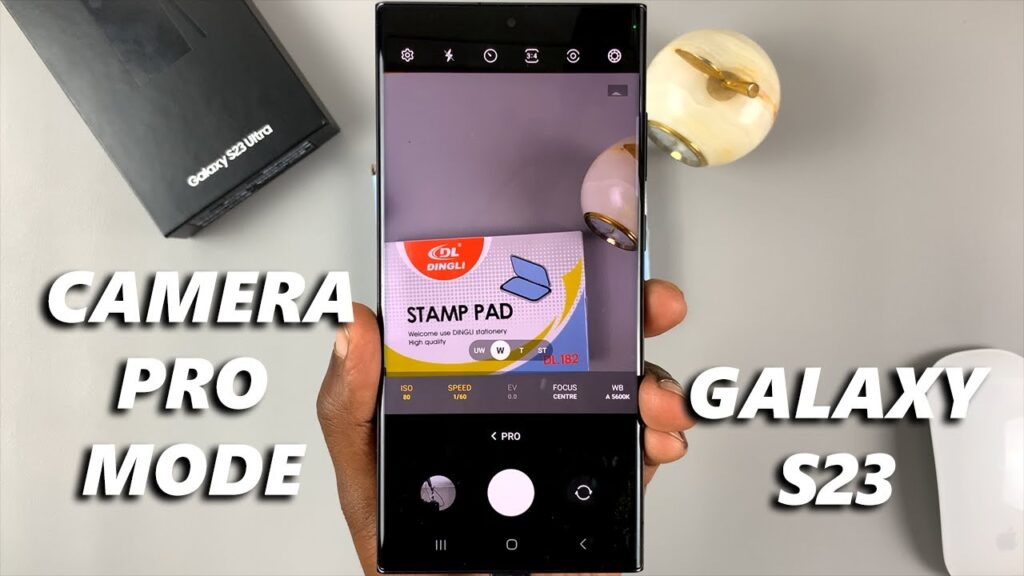
How to Access Pro Mode on Your Samsung Camera
The first step is simple: open your camera app and head into Pro Mode.
- Open the Camera App: Tap on the Camera icon on your Samsung phone.
- Swipe to “More”: At the bottom of the viewfinder, you’ll see a list of camera modes, like “Photo,” “Video,” “Portrait,” and so on. Swipe left to reveal more options, and tap on “More.”
- Select “Pro”: Inside the “More” section, you’ll find several specialized modes. Tap on “Pro” to enter Pro Mode. For video, tap “Pro Video.”
Once you’re in Pro Mode, you’ll notice a new interface with various controls at the bottom and sides of your screen. Don’t be intimidated – let’s break down what everything does.
Shopping ad
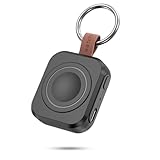
- Designed for Samsung Watch: This portable charger for Samsung Watch 8/8 Classic/7/ 7 Ultra / 6 /6 Classic / 5 / 5 Pro / 4 /3, Active 2 / Active 1 ensures seamless compatibility with new and old watches. This for Samsung galaxy watch charger can be carried around without a power source and can solve your low battery anxiety anytime.(Not for Galaxy Watch 9,Ultra 2)
- Easy Charging: Simply place the watch in the center of the charging area and press the power button to start charging immediately. The built-in magnets hold the watch in place, ensuring that the charging contacts are perfectly aligned for efficient charging. Once charging is complete, the portable galaxy watch charger can be turned off by pressing the power button twice; if no manual operation is required, the galaxy watch will automatically power off after 30s of inactivity.
- 1200mAh Battery: The portable watch charger has a built-in 1200mAh battery that can charge your watch 1-2 times. Ideal goods for traveling, exercising or extended outdoor activities.
- Compact and Portable: The 1200mAh galaxy watch ultra charger measures 5 x 4.6 x 1.5 cm (2*1.8*0.6 in), which is small enough to fit in a pocket or small purse. The watch charger comes with a keychain and eliminates the need for a charging cable, making it perfect for traveling and carrying.
- Package Includes: 1*Portable charger for samsung galaxy watch, 1*USB-C Charging Cable (1 meter), 1*Instruction Manual. It is very suitable as a Christmas gift, New Year's gift, Valentine's Day gift, Mother's Day gift, Father's Day gift, etc. to give to family and friends on special days.
As an Amazon Associate I earn from qualifying purchases.
Understanding Pro Mode Settings
Think of the Pro Mode settings as the manual dials on a traditional camera. You’ve got complete control over how each shot turns out, but don’t worry, I’ll guide you through the key ones.
- ISO (Light Sensitivity)
ISO adjusts how sensitive your camera’s sensor is to light.
Free tools Windows power users keep installed
One-click scans. No signup required.
- Low ISO (e.g., ISO 50, 100): Best for bright environments. A lower ISO results in cleaner, sharper images with minimal noise (graininess).
- High ISO (e.g., ISO 800, 1600+): Handy in low-light situations. While it brightens up your image, higher ISO can introduce noise, which might make your photo look grainy.
How to Use: Tap the ISO icon (usually labeled “ISO”). A slider will appear – drag it to adjust the sensitivity. Generally, you’ll want the lowest ISO that still gives you a well-exposed image. That way, you minimize the noise.
- Shutter Speed (Exposure Time)
Shutter speed determines how long your camera’s shutter remains open to let in light.
Shopping ad

- Small & Powerful: With 25W charging power but smaller size, this Vilive Samsung charger fast charging cord is more convenient and portable. Equipped with a type c port, you can charge your device back to full power in no time by using the 25W USB C fast charger for Samsung Galaxy S26 S25 series. It takes about 1 hour to fully charge your Samsung Galaxy S26 ultra, S25 ultra, S24 ultra, S23 ultra, 3 times as fast as standard PC USB-C charger.
- Universal Compatibility: The Vilive samsung fast charger supports most of usb c devices, including Samsung Galaxy S26 Ultra/S26/S26+/S25 Ultra/S25+/S25/S24 Ultra/S24/S24+/S23 Ultra/S23/S23+/S21/ S21+/ S21 Ultra/ S22/S22+/S22 Ultra, S20/S20+/S20 Ultra/ S20, Note10/Note 20. It also charge for iPhone/Duo/ iPhone 18 Pro Max/iPhone 18 Pro/iPhone 17/iPhone 17 Pro Max/iPhone 17/16/15. Please be noted that "fast charging" is not suitable for S8/S9/S10, Galaxy Z Fold 5/Galaxy Z Flip 5/Z Flip/Z Flip3/Z Flip3 5G/Galaxy Z Fold2/Z Fold3.
- Vilive 10FT Type C Charger Fast Charging: The 25W android phone charger fast charging is equipped with extra longer 10FT(about 3 meters long) USB C fast charger cable, offering a user-friendly reversible design and longer charging distance, fast charging and up to 480 Mbps data transfer speed. The power output up to 3 Amp and 100-240 volt input of this 2pack Samsung fast chargers can charge two devices simultaneously, ideal for worldwide travel with your partner!
- Safety Assurance: The Vilive Samsung galaxy S26 S25 S24 S23 ultra super fast charger is built in intelligent chips, which can protect your devices against damage caused by short circuit, over-current, over-voltage, over-heating, and over-charging issues. Automatically stops charging when battery capacity is full to ensure your device safety and longevity.
- What's in Package: 2x 25W Vilive USB C fast charger blocks and 2x extra long 10FT(about 3 meters long) USB C fast charging cables.
- Fast Shutter Speed (e.g., 1/1000s, 1/500s): Freezes motion. Perfect for fast-moving subjects like athletes or wildlife. Less light enters, so the image might appear darker.
- Slow Shutter Speed (e.g., 1/30s, 1s, 10s): Creates motion blur. This is great for artistic effects like smooth water in landscapes or capturing light trails at night. It lets in more light, so your image will be brighter. (Pro tip: a tripod is essential for slow shutter speeds to prevent camera shake.)
How to Use: Tap the Shutter Speed icon (it usually looks like a camera shutter). Adjust the slider to set your desired speed. If you’re shooting handheld, try to keep the shutter speed at 1/60s or faster to avoid any blur from shaky hands.
- Aperture (Fixed on Most Samsung Phones)
While traditional cameras let you adjust the aperture (the opening in the lens), most Samsung phones come with a fixed aperture (like f/1.7 or f/1.9). A wider aperture (lower f-number) lets in more light and creates a shallow depth of field (blurry background).
Some older or specialized Samsung models might have a dual-aperture lens (e.g., f/1.5 and f/2.4), allowing you to switch between them. If that’s the case for you, you’ll see an icon to toggle between the two.
- Focus (Manual Focus)
Focus determines which part of your image is sharp.
Shopping ad

- Dimmable Digital Clock - The Samsung charging station features a unique digital clock with customizable 12/24 hour formats and four adjustable brightness levels(High/Medium/Low/Off). Touch the clock display to adjust brightness. Time is saved even after power disconnection – no need to reset after unplugging. Note: No alarm function.
- Space-Saving Design - This thoughtfully designed 3-in-1 charging station with a clock eliminates excess charging cables and desktop clocks. With just one device, you can charge multiple devices simultaneously and check the time without needing to unlock your phone.
- Wide Compatibility - The watch charging area is specifically designed for Samsung Galaxy Watch Ultra/8/8 Classic/7/6/6 Classic/5/5 Pro/4/4 Classic/3/Active 1/2. The phone and earbud charging areas support all wireless charging phones and earbuds, compatible with S26 Ultra/S26+/S26/S25 Ultra/S25+/S25/S24 Ultra/S24+/S24/S23/S22/S10/Note 20/Z Flip7/Z Fold6 and iPhone 17 series, as well as Galaxy Buds series. (Note: Not for Apple Watch)
- Multiple Charging Protections - This wireless charger is made from fire-resistant materials and features multiple heat dissipation holes to aid cooling. It also includes over-voltage protection, over-current protection, overload protection, and foreign object detection for safe charging.
- Perfect for Nightstand, Office Desk, or Travel – Compact design fits any space. Place it on your bedside table for overnight charging, on your office desk for all-day power, or pack it in your bag for business trips. Clean LED indicator light is not distracting in dark rooms.
- Manual Focus (MF): Gives you complete control over the focus, which is essential for macro photography or portraits where you want a specific part of the image to be in sharp focus.
- Auto Focus (AF): Automatically tries to find and lock focus for you.
How to Use: Tap the Focus icon (usually a mountain range or “AF/MF”). Switch to Manual Focus (MF). A slider will pop up that lets you adjust the focus. You’ll often see a green highlight showing what’s in sharp focus.
- White Balance (Color Temperature)
White Balance adjusts the color tones in your photos to make white objects appear truly white, no matter the lighting.
Windows Errors? Fix Them Before They Spread
Repair common Windows errors and clear accumulated junk for a smoother, more stable PC - no reinstall needed.Free scan · no reinstallCrashes, No Sound, or Screen Glitches?
Random freezes, missing sound and display glitches usually trace back to one bad driver. Find and replace yours safely.Free scan · under a minute- Presets: You’ll often see options like Daylight, Cloudy, Fluorescent, Incandescent, and Auto.
- Kelvin (K) Scale: For more precise control, you can adjust the color temperature manually using the Kelvin scale. Lower values give cooler (bluer) tones, while higher values give warmer (yellow/orange) tones.
How to Use: Tap the White Balance icon (usually a sun or cloud). Choose a preset or use the Kelvin slider to tweak the color temperature. If your indoor photos look too yellow, try a cooler setting.
- Exposure Value (EV)
Exposure Value is a quick way to brighten or darken your image, adjusting the overall exposure without fiddling with ISO, shutter speed, or aperture.
Shopping ad

- Find your things with ease: The SmartThings Find app uses Bluetooth and ultra-wideband (UWB) technology to locate and keep track of your stuff
- Water and Dust Resistant: IP67 rating offers protection against dust and water immersion between 15 cm and 1 meter for up to 30 minutes
- Compatible with Galaxy Devices Only
- Positive EV (+ values): Brightens the image.
- Negative EV (- values): Darkens the image.
How to Use: Tap the EV icon (usually a “+/-” symbol) and adjust the slider. This is handy for quick adjustments when your other settings are just about right.
- Metering Mode (Light Measurement)
Metering mode tells your camera how to measure the light in the scene and determine the correct exposure.
Recommended Free Tools
- Multi (Matrix/Evaluative): The default setting, where the camera analyzes the entire scene for the best exposure.
- Center-weighted: Measures light mainly from the center of the frame.
- Spot: Measures light from a very specific, small area you select.
How to Use: Tap the Metering Mode icon (often a circle with patterns). Choose the mode that fits your scene. Spot metering is great for backlit subjects or high-contrast situations.
- Filters and Tones
In addition to basic exposure, Pro Mode gives you control over the image’s overall aesthetic.
Shopping ad

- REDESIGNED TO DO MORE: The redesigned Galaxy SmartTag2 is made so you can keep calm and keep track; Its design makes it easy for you to tag and carry your belongings
- EASY TO USE: It's IP67-rated water- and dust-resistant, activates your compatible IoT devices and stays powered for up to 500 days or even up to 40% more on Non-Power Saving Mode
- RELAX, YOU'VE GOT IT TAGGED: Simply register a new Galaxy SmartTag2 and get started right away with SmartThings Find; With its intuitive tracking experience, you now have a way to keep track of things you love right in the palm of your hand
- SEARCH NEAR WHEN IT'S NOT FAR: Lose something. Switch on Search Nearby and get guided instructions to your item's location via Compass View; If you still don't see it, just ring your Galaxy SmartTag2 to have it send out an audible signal
- Type of battery needed: replaceable CR2032 1 ea Lithium battery (not included)
- Filters: Add creative effects (e.g., vintage, black and white).
- Contrast/Saturation/Highlights/Shadows: Fine-tune the image’s mood. Adjust the intensity of colors, light and dark areas, and overall brightness.
How to Use: Tap the Effects icon or the Tones icon, then adjust the sliders to suit your style. These settings let you add your own personal touch to each shot.
- RAW vs. JPEG (Image Format)
This setting is crucial for serious photographers.
- JPEG: A compressed format, smaller in file size, but you lose some image quality and editing flexibility.
- RAW: An uncompressed format that captures all the data from the sensor. RAW files are much larger but offer a lot more flexibility in post-processing.
How to Use: Go to the camera settings in Pro Mode, look for “Advanced picture options,” and select “RAW and JPEG” or “RAW only” for the best quality. You’ll need a good editing app like Adobe Lightroom to process RAW files.
What’s actually slowing this PC down?
Pick the symptom - the matching free tool is one click away.
- Expert RAW (For High-End Samsung Models)
Some higher-end models, like the Galaxy S24 Ultra, include an “Expert RAW” mode. This expands on Pro Mode, adding features like multi-frame RAW capture and astrophotography modes.
If your phone supports it, it’s definitely worth exploring for even more advanced photography.
Advanced Tips for Using Pro Mode
- Use a Tripod: For long exposures or low-light shots, a tripod is essential to avoid any blur from shaky hands.
- Composition is Key: Even with the perfect settings, a poorly composed photo won’t look great. Use composition techniques like the Rule of Thirds or leading lines to improve your shots.
- Practice Makes Perfect: The best way to master Pro Mode is to experiment. Try the same shot with different settings and see how each change affects the final result.
- Check the Histogram: Many Samsung phones display a histogram in Pro Mode, showing the distribution of light in your image. A balanced histogram is usually a good sign of proper exposure.
- Post-Processing: If you shoot in RAW, you’ve got a lot of room to enhance your photos later using apps like Adobe Lightroom.
By familiarizing yourself with the settings in Pro Mode and experimenting with them, you can capture professional-quality photos right from your Samsung phone. It’s all about practice, but once you get the hang of it, the creative possibilities are endless.
More shopping ads
Product prices and availability are accurate as of the date/time indicated and are subject to change. Any price and availability information displayed on Amazon at the time of purchase will apply.