What’s actually slowing this PC down?
Pick the symptom - the matching free tool is one click away.
Samsung Mobile is reader-supported. When you buy through links on our site, we may earn an affiliate commission. As an Amazon Associate I earn from qualifying purchases. Learn more
Want to turn quick moments into looping, animated snippets? Creating GIFs directly on your Samsung phone is a simple, fun way to capture action, reactions, or just quirky little moments without diving into video editing. Whether it’s a funny face, a cute pet yawn, or a dramatic hair flip—you can capture it as a GIF and share it instantly.
Samsung gives you several intuitive ways to make GIFs using just your camera and built-in gallery tools. Here’s a complete walkthrough of all the ways you can do it.
General shopping ads
Method 1: Use the Shutter Button to Create a GIF (Newer Samsung Models)
If you’re using a recent Galaxy device, Samsung lets you turn the camera’s shutter button into a GIF recorder.
Shopping ad
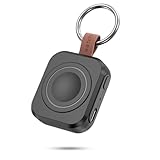
- Designed for Samsung Watch: This portable charger for Samsung Watch 8/8 Classic/7/ 7 Ultra / 6 /6 Classic / 5 / 5 Pro / 4 /3, Active 2 / Active 1 ensures seamless compatibility with new and old watches. This for Samsung galaxy watch charger can be carried around without a power source and can solve your low battery anxiety anytime.(Not for Galaxy Watch 9,Ultra 2)
- Easy Charging: Simply place the watch in the center of the charging area and press the power button to start charging immediately. The built-in magnets hold the watch in place, ensuring that the charging contacts are perfectly aligned for efficient charging. Once charging is complete, the portable galaxy watch charger can be turned off by pressing the power button twice; if no manual operation is required, the galaxy watch will automatically power off after 30s of inactivity.
- 1200mAh Battery: The portable watch charger has a built-in 1200mAh battery that can charge your watch 1-2 times. Ideal goods for traveling, exercising or extended outdoor activities.
- Compact and Portable: The 1200mAh galaxy watch ultra charger measures 5 x 4.6 x 1.5 cm (2*1.8*0.6 in), which is small enough to fit in a pocket or small purse. The watch charger comes with a keychain and eliminates the need for a charging cable, making it perfect for traveling and carrying.
- Package Includes: 1*Portable charger for samsung galaxy watch, 1*USB-C Charging Cable (1 meter), 1*Instruction Manual. It is very suitable as a Christmas gift, New Year's gift, Valentine's Day gift, Mother's Day gift, Father's Day gift, etc. to give to family and friends on special days.
As an Amazon Associate I earn from qualifying purchases.
- Open the Camera App: Tap the Camera icon as usual.
- Head to Camera Settings: Look for the gear icon (⚙️) in the corner—tap it to open settings.
- Find “Hold Shutter Button To…”: Scroll until you see something like “Hold Shutter button to.” It might be under “Shooting methods” or “Common.”
- Choose “Create GIF”: Instead of taking burst shots, select “Create GIF.”
- Record Your GIF: Now, when you press and hold the shutter button, the camera captures a short animated clip and automatically saves it as a GIF. Just lift your finger to stop.
- Find It in Gallery: Your GIF is saved right in your Gallery—no extra steps needed.
Tip: Try to keep your phone steady while recording for a cleaner, smoother animation.
Method 2: Convert a Burst Shot Into a GIF
If your phone doesn’t support the shutter-to-GIF method, or if you want more control over frames, burst shots are your next best friend.
PC Slower Than It Used to Be?
A free scan shows the junk files, broken settings and background clutter dragging Windows down - then fixes them in one click.Free scan · Windows 10 & 11Crashes, No Sound, or Screen Glitches?
Random freezes, missing sound and display glitches usually trace back to one bad driver. Find and replace yours safely.Free scan · under a minuteShopping ad

- Small & Powerful: With 25W charging power but smaller size, this Vilive Samsung charger fast charging cord is more convenient and portable. Equipped with a type c port, you can charge your device back to full power in no time by using the 25W USB C fast charger for Samsung Galaxy S26 S25 series. It takes about 1 hour to fully charge your Samsung Galaxy S26 ultra, S25 ultra, S24 ultra, S23 ultra, 3 times as fast as standard PC USB-C charger.
- Universal Compatibility: The Vilive samsung fast charger supports most of usb c devices, including Samsung Galaxy S26 Ultra/S26/S26+/S25 Ultra/S25+/S25/S24 Ultra/S24/S24+/S23 Ultra/S23/S23+/S21/ S21+/ S21 Ultra/ S22/S22+/S22 Ultra, S20/S20+/S20 Ultra/ S20, Note10/Note 20. It also charge for iPhone/Duo/ iPhone 18 Pro Max/iPhone 18 Pro/iPhone 17/iPhone 17 Pro Max/iPhone 17/16/15. Please be noted that "fast charging" is not suitable for S8/S9/S10, Galaxy Z Fold 5/Galaxy Z Flip 5/Z Flip/Z Flip3/Z Flip3 5G/Galaxy Z Fold2/Z Fold3.
- Vilive 10FT Type C Charger Fast Charging: The 25W android phone charger fast charging is equipped with extra longer 10FT(about 3 meters long) USB C fast charger cable, offering a user-friendly reversible design and longer charging distance, fast charging and up to 480 Mbps data transfer speed. The power output up to 3 Amp and 100-240 volt input of this 2pack Samsung fast chargers can charge two devices simultaneously, ideal for worldwide travel with your partner!
- Safety Assurance: The Vilive Samsung galaxy S26 S25 S24 S23 ultra super fast charger is built in intelligent chips, which can protect your devices against damage caused by short circuit, over-current, over-voltage, over-heating, and over-charging issues. Automatically stops charging when battery capacity is full to ensure your device safety and longevity.
- What's in Package: 2x 25W Vilive USB C fast charger blocks and 2x extra long 10FT(about 3 meters long) USB C fast charging cables.
- Open the Camera App.
- Capture a Burst Shot: Depending on your phone model:
- Press and hold the shutter button (if set to “burst”).
- Or swipe the shutter downward and hold to activate burst mode.
- Open the Burst in Gallery: You’ll see a stack icon on the thumbnail. Tap to open it.
- Tap the Three Dots (⋮) or look for “Create GIF” right in the image tools.
- Choose Frames & Adjust:
- Select which frames to include.
- Set the speed, direction (loop, reverse), and frame rate.
- Save: Once you’re happy with the preview, hit “Save.” You now have a custom GIF ready to go.
Method 3: Convert a Video into a GIF (Using Samsung Gallery)
Already shot a video but only want to share a short, looping moment? No problem—you can turn that into a GIF in seconds.
Shopping ad

- Dimmable Digital Clock - The Samsung charging station features a unique digital clock with customizable 12/24 hour formats and four adjustable brightness levels(High/Medium/Low/Off). Touch the clock display to adjust brightness. Time is saved even after power disconnection – no need to reset after unplugging. Note: No alarm function.
- Space-Saving Design - This thoughtfully designed 3-in-1 charging station with a clock eliminates excess charging cables and desktop clocks. With just one device, you can charge multiple devices simultaneously and check the time without needing to unlock your phone.
- Wide Compatibility - The watch charging area is specifically designed for Samsung Galaxy Watch Ultra/8/8 Classic/7/6/6 Classic/5/5 Pro/4/4 Classic/3/Active 1/2. The phone and earbud charging areas support all wireless charging phones and earbuds, compatible with S26 Ultra/S26+/S26/S25 Ultra/S25+/S25/S24 Ultra/S24+/S24/S23/S22/S10/Note 20/Z Flip7/Z Fold6 and iPhone 17 series, as well as Galaxy Buds series. (Note: Not for Apple Watch)
- Multiple Charging Protections - This wireless charger is made from fire-resistant materials and features multiple heat dissipation holes to aid cooling. It also includes over-voltage protection, over-current protection, overload protection, and foreign object detection for safe charging.
- Perfect for Nightstand, Office Desk, or Travel – Compact design fits any space. Place it on your bedside table for overnight charging, on your office desk for all-day power, or pack it in your bag for business trips. Clean LED indicator light is not distracting in dark rooms.
- Open the Gallery App and tap on your chosen video.
- Look for a “GIF” Option:
- It might appear while the video is playing.
- If not, tap the pencil icon or menu (⋮), then look for “GIF.”
- Trim Your Clip:
- Drag the handles to select just a few seconds.
- You can also tweak playback speed, direction, and cropping.
- Tap Save: Your edited clip is now saved as a new GIF.
Pro tip: Keep it short—GIFs work best when they’re just a few seconds long.
Method 4: Use Smart Select for Screen-Based GIFs (Edge Panel)
Shopping ad

- Find your things with ease: The SmartThings Find app uses Bluetooth and ultra-wideband (UWB) technology to locate and keep track of your stuff
- Water and Dust Resistant: IP67 rating offers protection against dust and water immersion between 15 cm and 1 meter for up to 30 minutes
- Compatible with Galaxy Devices Only
Want to make a GIF from something on your screen? Like a clip from a YouTube video or an animation in an app? Smart Select has you covered.
- Enable Edge Panels:
- Go to Settings > Display > Edge Panels, and turn it on.
- Then ensure “Smart Select” is added to your active panels.
- Swipe to Open Edge Panel and choose “Smart Select.”
- Tap “Animation”: A frame will pop up on your screen.
- Resize the Frame around the area you want to record.
- Tap Record, then Stop when done.
- Preview & Save: You can crop or tweak quality here. Then save your GIF directly to Gallery.
Note: Since it captures your screen, no audio is included.
Shopping ad

- REDESIGNED TO DO MORE: The redesigned Galaxy SmartTag2 is made so you can keep calm and keep track; Its design makes it easy for you to tag and carry your belongings
- EASY TO USE: It's IP67-rated water- and dust-resistant, activates your compatible IoT devices and stays powered for up to 500 days or even up to 40% more on Non-Power Saving Mode
- RELAX, YOU'VE GOT IT TAGGED: Simply register a new Galaxy SmartTag2 and get started right away with SmartThings Find; With its intuitive tracking experience, you now have a way to keep track of things you love right in the palm of your hand
- SEARCH NEAR WHEN IT'S NOT FAR: Lose something. Switch on Search Nearby and get guided instructions to your item's location via Compass View; If you still don't see it, just ring your Galaxy SmartTag2 to have it send out an audible signal
- Type of battery needed: replaceable CR2032 1 ea Lithium battery (not included)
Tips for Making Better GIFs
- Keep it Short: 1–3 seconds is ideal.
- Capture Movement: Focus on action or reaction—it makes the loop more interesting.
- Use Good Lighting: Just like with photos, it makes a huge difference.
- Hold Steady: Less movement = smoother GIF.
- Share Freely: GIFs can be sent via messaging apps, Instagram, email—wherever you want.
By using these simple methods, your Samsung phone becomes a full-featured GIF creator—no third-party apps required. Whether you’re capturing something funny, beautiful, or just oddly satisfying, you can turn it into a shareable loop in no time.
More shopping ads
Product prices and availability are accurate as of the date/time indicated and are subject to change. Any price and availability information displayed on Amazon at the time of purchase will apply.