The Tool Desk
Outbyte Driver Updater FREEFix the driver behind crashes, sound loss and screen glitchesFind Drivers →Outbyte PC Repair FREEClear out junk files and repair common Windows errorsFree Scan →Samsung Mobile is reader-supported. When you buy through links on our site, we may earn an affiliate commission. As an Amazon Associate I earn from qualifying purchases. Learn more
Your Samsung Galaxy Watch, paired with the powerful Samsung Health app, is more than just a timepiece; it’s a comprehensive health and fitness companion. To truly leverage its capabilities, understanding how to navigate and utilize its various features is key. This guide will walk you through making the most of Samsung Health on your Galaxy Watch.
Getting Started: Setting Up Your Galaxy Watch and Samsung Health
General shopping ads
Before diving into advanced tracking, ensure your watch and the Samsung Health app are properly set up and synchronized.
What’s actually slowing this PC down?
Pick the symptom - the matching free tool is one click away.
- Pair Your Galaxy Watch with Your Smartphone:
- Download the Galaxy Wearable app on your Samsung or compatible Android smartphone from the Google Play Store. For iPhones, download it from the Apple App Store (note: some advanced features like ECG and Blood Pressure are not available on iOS due to Google Play Services dependency).
- Open the Galaxy Wearable app and follow the on-screen instructions to connect your Galaxy Watch via Bluetooth.
- Ensure your watch’s software is updated to the latest version for optimal performance and access to all features.
- Set Up Your Samsung Health Profile:
- Open the Samsung Health app on your smartphone.
- Navigate to your profile section (usually accessible by tapping the three lines or your profile icon).
- Enter accurate personal information such as gender, height, weight, and age. This data is crucial for accurate calorie burn calculations, heart rate zone estimations, and other health metrics.
Core Fitness Tracking: Steps, Exercise, and Activity
Shopping ad
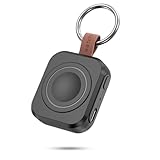
- Designed for Samsung Watch: This portable charger for Samsung Watch 8/8 Classic/7/ 7 Ultra / 6 /6 Classic / 5 / 5 Pro / 4 /3, Active 2 / Active 1 ensures seamless compatibility with new and old watches. This for Samsung galaxy watch charger can be carried around without a power source and can solve your low battery anxiety anytime.(Not for Galaxy Watch 9,Ultra 2)
- Easy Charging: Simply place the watch in the center of the charging area and press the power button to start charging immediately. The built-in magnets hold the watch in place, ensuring that the charging contacts are perfectly aligned for efficient charging. Once charging is complete, the portable galaxy watch charger can be turned off by pressing the power button twice; if no manual operation is required, the galaxy watch will automatically power off after 30s of inactivity.
- 1200mAh Battery: The portable watch charger has a built-in 1200mAh battery that can charge your watch 1-2 times. Ideal goods for traveling, exercising or extended outdoor activities.
- Compact and Portable: The 1200mAh galaxy watch ultra charger measures 5 x 4.6 x 1.5 cm (2*1.8*0.6 in), which is small enough to fit in a pocket or small purse. The watch charger comes with a keychain and eliminates the need for a charging cable, making it perfect for traveling and carrying.
- Package Includes: 1*Portable charger for samsung galaxy watch, 1*USB-C Charging Cable (1 meter), 1*Instruction Manual. It is very suitable as a Christmas gift, New Year's gift, Valentine's Day gift, Mother's Day gift, Father's Day gift, etc. to give to family and friends on special days.
As an Amazon Associate I earn from qualifying purchases.
Samsung Health on your Galaxy Watch excels at tracking your daily movement and workouts.
Tracking Steps and Daily Activity
Your Galaxy Watch automatically counts your steps and estimates distance traveled.
- Accessing Your Steps Data on Watch:
- From the Watch face, tap the Samsung Health icon (if available) or swipe up to the Apps screen and locate the Samsung Health app.
- Rotate the bezel or swipe to find the Steps tracker screen. Here, you’ll see your current step count.
- To view weekly records, swipe up or down. To see daily records, tap “View each date.”
- Setting a Step Goal:
- On the Steps tracker screen, tap the three dots (More options) or Settings icon.
- Select “Step target.”
- Rotate the bezel or use the on-screen controls to set your desired daily step goal, then tap DONE.
- Receiving Step Goal Notifications:
- In the Steps settings, tap the Notifications switch to activate alarms for when you reach your step target. This can be a great motivator!
Tracking Floors Climbed
The Galaxy Watch can also track the number of floors you ascend. One floor is roughly 3 meters.
Shopping ad

- Small & Powerful: With 25W charging power but smaller size, this Vilive Samsung charger fast charging cord is more convenient and portable. Equipped with a type c port, you can charge your device back to full power in no time by using the 25W USB C fast charger for Samsung Galaxy S26 S25 series. It takes about 1 hour to fully charge your Samsung Galaxy S26 ultra, S25 ultra, S24 ultra, S23 ultra, 3 times as fast as standard PC USB-C charger.
- Universal Compatibility: The Vilive samsung fast charger supports most of usb c devices, including Samsung Galaxy S26 Ultra/S26/S26+/S25 Ultra/S25+/S25/S24 Ultra/S24/S24+/S23 Ultra/S23/S23+/S21/ S21+/ S21 Ultra/ S22/S22+/S22 Ultra, S20/S20+/S20 Ultra/ S20, Note10/Note 20. It also charge for iPhone/Duo/ iPhone 18 Pro Max/iPhone 18 Pro/iPhone 17/iPhone 17 Pro Max/iPhone 17/16/15. Please be noted that "fast charging" is not suitable for S8/S9/S10, Galaxy Z Fold 5/Galaxy Z Flip 5/Z Flip/Z Flip3/Z Flip3 5G/Galaxy Z Fold2/Z Fold3.
- Vilive 10FT Type C Charger Fast Charging: The 25W android phone charger fast charging is equipped with extra longer 10FT(about 3 meters long) USB C fast charger cable, offering a user-friendly reversible design and longer charging distance, fast charging and up to 480 Mbps data transfer speed. The power output up to 3 Amp and 100-240 volt input of this 2pack Samsung fast chargers can charge two devices simultaneously, ideal for worldwide travel with your partner!
- Safety Assurance: The Vilive Samsung galaxy S26 S25 S24 S23 ultra super fast charger is built in intelligent chips, which can protect your devices against damage caused by short circuit, over-current, over-voltage, over-heating, and over-charging issues. Automatically stops charging when battery capacity is full to ensure your device safety and longevity.
- What's in Package: 2x 25W Vilive USB C fast charger blocks and 2x extra long 10FT(about 3 meters long) USB C fast charging cables.
- Accessing Floors Data on Watch:
- Open the Samsung Health app on your watch.
- Rotate the bezel or swipe to the Floors tracker screen.
- Similar to steps, you can view weekly and daily records.
- Setting a Floor Target:
- On the Floors tracker screen, tap the three dots or Settings icon.
- Select “Floor Target” and set your goal.
Tracking Workouts and Exercise
This is where the Galaxy Watch truly shines for fitness enthusiasts.
- Manually Tracking an Exercise:
- Open the Samsung Health app on your watch.
- Rotate the bezel or swipe to the Exercise tracker screen.
- Tap “Workout” or “My exercises.”
- Select your desired activity from the list (e.g., Running, Cycling, Swimming). If your activity isn’t listed, scroll to the “+” sign to add more exercises (there are over 90 available!).
- Tap the Start icon to begin your workout.
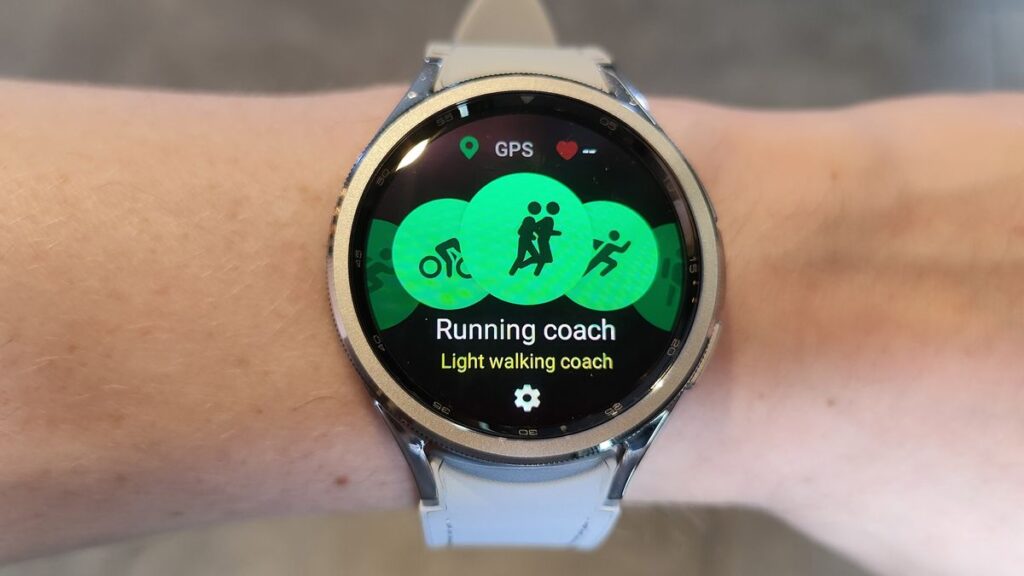
- During the workout, you can view metrics like duration, heart rate, calories burned, and distance. Swipe to access settings or pause the workout.
- To end the workout, swipe right and tap Finish.
- Automatic Workout Detection:
- Your Galaxy Watch can automatically detect certain exercises like walking, running, elliptical training, and rowing after a few minutes of continuous activity. This is usually enabled by default.
- To manage this feature, go to Samsung Health app on your phone > Settings > Workout detection. Ensure it’s toggled On. This is incredibly useful for capturing activities you might forget to start manually.
- Creating Custom Workout Routines (Galaxy Watch4 series and later):
- On your smartphone, open the Samsung Health app.
- Go to the Fitness tab. You might find an option to “Create workout routine.”
- You can put together a series of exercises, add warm-up and cool-down sessions, and even set the number of circuits. This allows for highly personalized training plans.
- Understanding Heart Rate Zones:
- For more effective workouts, your Galaxy Watch (Galaxy Watch4 and later with Samsung Health 6.24 or later) can help you set Personalized HR Zones.
- To measure your heart rate zones, you typically need to run outdoors for at least 10 minutes at a steady pace.
- These zones help you tailor your intensity for different fitness goals (e.g., fat burn, cardio, peak performance).
Comprehensive Health Monitoring
Beyond activity tracking, Samsung Health offers crucial health monitoring features.
Measuring Your Heart Rate
- On-Demand Heart Rate Measurement:
- Open the Samsung Health app on your watch.
- Rotate the bezel or swipe to the Heart rate tracker screen.
- Tap MEASURE. Wear the watch firmly on your lower arm, just above the wrist, for accurate readings.
- Automatic Heart Rate Monitoring:
- To set continuous or frequent heart rate monitoring:
- Open the Samsung Health app on your watch.
- Go to the Heart Rate section.
- Tap the Settings icon (three dots).
- Select Auto HR setting and choose your preferred interval (e.g., continuous, every 10 minutes). Keep in mind continuous monitoring will use more battery.
- To set continuous or frequent heart rate monitoring:
Tracking Sleep Patterns
Your Galaxy Watch automatically tracks your sleep when you wear it to bed.
Recommended Free Tools
Shopping ad

- Dimmable Digital Clock - The Samsung charging station features a unique digital clock with customizable 12/24 hour formats and four adjustable brightness levels(High/Medium/Low/Off). Touch the clock display to adjust brightness. Time is saved even after power disconnection – no need to reset after unplugging. Note: No alarm function.
- Space-Saving Design - This thoughtfully designed 3-in-1 charging station with a clock eliminates excess charging cables and desktop clocks. With just one device, you can charge multiple devices simultaneously and check the time without needing to unlock your phone.
- Wide Compatibility - The watch charging area is specifically designed for Samsung Galaxy Watch Ultra/8/8 Classic/7/6/6 Classic/5/5 Pro/4/4 Classic/3/Active 1/2. The phone and earbud charging areas support all wireless charging phones and earbuds, compatible with S26 Ultra/S26+/S26/S25 Ultra/S25+/S25/S24 Ultra/S24+/S24/S23/S22/S10/Note 20/Z Flip7/Z Fold6 and iPhone 17 series, as well as Galaxy Buds series. (Note: Not for Apple Watch)
- Multiple Charging Protections - This wireless charger is made from fire-resistant materials and features multiple heat dissipation holes to aid cooling. It also includes over-voltage protection, over-current protection, overload protection, and foreign object detection for safe charging.
- Perfect for Nightstand, Office Desk, or Travel – Compact design fits any space. Place it on your bedside table for overnight charging, on your office desk for all-day power, or pack it in your bag for business trips. Clean LED indicator light is not distracting in dark rooms.
- Viewing Sleep Data:
- Open the Samsung Health app on your watch.
- Rotate the bezel or swipe to the Sleep tracker screen.
- View your sleep pattern and information, including sleep stages (Awake, REM, Light, Deep), sleep score, and even detect snoring (if enabled and supported by your watch model).
- For detailed analysis and personalized Sleep Coaching, you’ll need to wear your watch for at least 7 days to gather sufficient data. This coaching provides insights and recommendations for improving your sleep habits.
Measuring Stress Levels
The Galaxy Watch can measure your stress levels based on heart rate and other factors.
- Measuring Stress:
- Open the Samsung Health app on your watch.
- Rotate the bezel or swipe to the Stress tracker screen.
- Tap MEASURE.
- Guided Breathing Exercises:
- If your stress level is high, the watch may suggest a BREATHE exercise. Tap on it and follow the on-screen instructions for guided deep and slow breathing to help alleviate stress.
Body Composition Measurement (Galaxy Watch4 series and later)
Newer Galaxy Watch models include a Bioelectrical Impedance Analysis (BIA) sensor to measure body composition.
Shopping ad

- Find your things with ease: The SmartThings Find app uses Bluetooth and ultra-wideband (UWB) technology to locate and keep track of your stuff
- Water and Dust Resistant: IP67 rating offers protection against dust and water immersion between 15 cm and 1 meter for up to 30 minutes
- Compatible with Galaxy Devices Only
- Performing a Body Composition Measurement:
- Open the Samsung Health app on your watch.
- Scroll down and tap “Body Composition.”
- Tap “Measure.”
- Follow the on-screen instructions:
- Select your gender and enter your height and weight (if not already done).
- Place your middle and ring fingers on the home and back buttons (depending on model) on the watch, ensuring your fingers don’t touch each other or your watch’s screen.
- Keep your arms extended and still.
- The watch will display your body fat percentage, skeletal muscle mass, and body water.
Note: Body composition measurements are for fitness and wellness purposes only and not for medical diagnosis. Do not measure if you have an implanted pacemaker or other medical device.
Advanced Features and Optimization Tips
Syncing with Samsung Health on Your Phone
Your Galaxy Watch constantly syncs data with the Samsung Health app on your paired smartphone, providing a more detailed and comprehensive overview of your health.
- Ensure Auto Sync is On: In the Galaxy Wearable app, check the settings to ensure data synchronization is enabled.
- Health Connect Integration: Samsung Health now integrates with Google’s Health Connect service, allowing data to be shared with other compatible third-party health apps. You can manage this in the Samsung Health app settings under “Health Connect.”
Connecting to Third-Party Services
Samsung Health can often connect with popular fitness apps like Strava and TechnoGym, allowing you to seamlessly share your workout data across platforms.
Shopping ad

- REDESIGNED TO DO MORE: The redesigned Galaxy SmartTag2 is made so you can keep calm and keep track; Its design makes it easy for you to tag and carry your belongings
- EASY TO USE: It's IP67-rated water- and dust-resistant, activates your compatible IoT devices and stays powered for up to 500 days or even up to 40% more on Non-Power Saving Mode
- RELAX, YOU'VE GOT IT TAGGED: Simply register a new Galaxy SmartTag2 and get started right away with SmartThings Find; With its intuitive tracking experience, you now have a way to keep track of things you love right in the palm of your hand
- SEARCH NEAR WHEN IT'S NOT FAR: Lose something. Switch on Search Nearby and get guided instructions to your item's location via Compass View; If you still don't see it, just ring your Galaxy SmartTag2 to have it send out an audible signal
- Type of battery needed: replaceable CR2032 1 ea Lithium battery (not included)
- In the Samsung Health app on your phone, go to Settings > Services to see available integrations and log in to your accounts.
Managing Widgets on Your Watch
Customize your Galaxy Watch face with Samsung Health widgets for quick access to your most important metrics.
- Adding/Removing Widgets:
- On your watch face, long-press the screen.
- Swipe left or right and tap the “+” icon to add new widgets.
- Select desired Samsung Health widgets (e.g., Activity, Steps, Heart Rate).
- You can also reorder existing widgets by long-pressing and dragging them.
Optimizing Battery Life for Continuous Tracking
Some health features, especially continuous monitoring, can consume more battery. Here are some tips:
- Adjust Heart Rate Monitoring Interval: If not constantly needed, change the “Auto HR setting” to “every 10 minutes” instead of “continuous.”
- Manual Stress Measurement: Set stress tracking to “manual only” if you don’t need continuous monitoring.
- Disable Snore Detection: If sleep tracking with snore detection is draining battery, consider turning it off.
- Turn off “Raise Wrist to Wake”: While convenient, this feature can sometimes activate unnecessarily, consuming power. Use “Touch to Wake” or button presses instead.
- Consider “Watch Only” Mode: For extreme battery saving, the “Watch only” mode disables most smart features but still displays the time, offering days of battery life.
Troubleshooting Common Issues
If you encounter issues with Samsung Health on your Galaxy Watch:
- Inaccurate Heart Rate: Ensure the watch is worn snugly, not too loose or too tight, and on your lower arm just above the wrist. Clean the sensor regularly. Cold temperatures can affect accuracy.
- Activity Tracking Issues: Verify that “Workout detection” is enabled in the Samsung Health app settings on your phone.
- Syncing Problems: Check Bluetooth connection between watch and phone. Try restarting both devices. In the Galaxy Wearable app, go to “Account and backup” > “Back up and restore” > “Back up data” to ensure your data is safe before trying more drastic measures.
- App Glitches: Update the Samsung Health app on both your phone and watch. If issues persist, try clearing the app cache or reinstalling.
- Battery Drain: Review the tips above for optimizing battery life. Check for any third-party apps that might be excessively using power.
By understanding and utilizing these features, you can transform your Samsung Galaxy Watch into a truly effective tool for managing and improving your overall health and fitness. Embrace the data, set achievable goals, and let your watch guide you on your wellness journey.
More shopping ads
Product prices and availability are accurate as of the date/time indicated and are subject to change. Any price and availability information displayed on Amazon at the time of purchase will apply.
Independent reader supportYour contribution helps us test, update, and keep practical guides available for everyone.